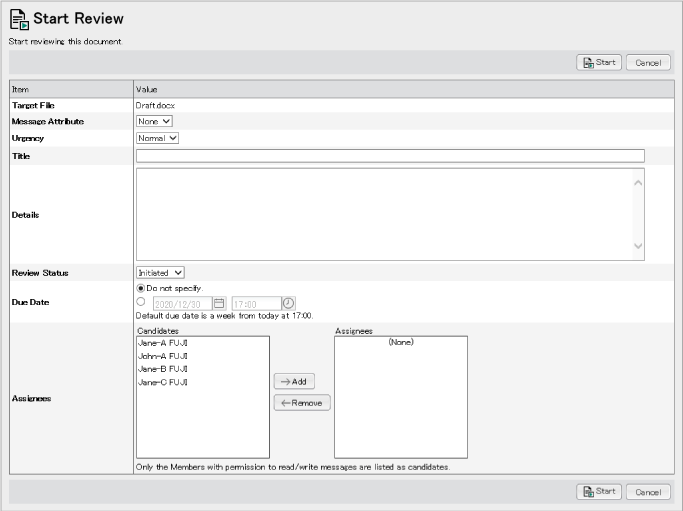
The [Start Review] window allows the members to start online reviews of the document.
Each item in the [Start Review] window is detailed below.
| Item |
Description |
| [Target File] |
When the current message is either a review message or a start review message. |
| [Message Attribute] |
Select the message attribute. When not specifying the attribute, select [None].
The default is [None]. The message attribute can be defined in the administrator's [Defined Message Attribute List] window. |
| [Urgency] |
Select the E-mail mail notification level.
The following three mail notification levels are available.
The default is [Medium].
- [Medium]
Mail Notification is set to either Immediate Mail Settings or Digest Mail Settings, depending on the selection the recipient has made in the [Mail Notifications] window.
- [Urgent]
Mail Notification is set to Immediate Mail Settings by default, regardless of whether the recipient has selected Immediate Mail Settings or Digest Mail Settings.
- [Low]
No message will be sent.
- The default value of mail notification method is linked to this [Urgency] settings. However, by changing mail notification method via the [Confirm Message Registration (Change Recipients)] window, the default settings can be overridden.
- All outgoing mail will be sent to its creator and assignee regardless of the urgency.
|
| [Title] |
Enter the title of the start review message. Entering the title is required here. Up to 120 half-width alphanumeric characters can be entered. |
| [Contents] |
Enter the start review message. |
| [Review Status] |
Select the review status. |
| [Due Date] |
Specify the Due Date by clicking the relevant radio button. |
| [Assignees] |
Select the user you want to assign to the ToDo from among the users displayed as candidates. The displayed candidates are the users who have read and write permissions to the content. All users after registration are displayed as "Initiated". |
| [Start] button |
Clicking this button starts the review according to the settings you have made. |
| [Cancel] button |
Clicking this button displays a dialog confirming the settings. Clicking the [Yes] button discards the settings and closes the [Start Review] window. |