Setting Classification Conditions: For date type classification [by Year]
Described below are how to set Date type classification "by Year". The classification conditions of Date Type Classification "by Year" can be set in two ways detailed below.
The settings (for setting the start month of the month) of the calendar used in the classification "by Year" is set on the [Enter Period] window.
When classifying "by Year" only
Described below is how to set Date type classification "by Year" (classify "by Year" only).
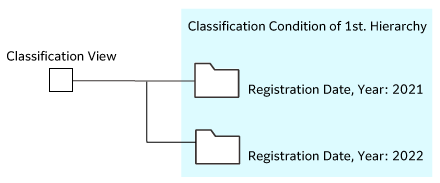
When 2021-2022 is specified as the period of classification and the classification "by Month" is not specified, the results are as follows:
Operation
- Select the Date type of attributes from the [Attributes] drop-down list in the page displayed by clicking the [Add] button of the [Classification Conditions] page.
- Select classification "by Year" from the [Classification Type] drop-down list.
The [Classification Conditions Date Type Classification by "Year"] page appears.
- Specify the range of classification. Specify the start year and close year in [Period].
- Select the [No] radio button of [Month].
- When classifying the objects with the condition values which may not be classified to any classification folders, select the [Create] radio button of [Other Folder (required)].
- When classifying the objects with the value which is not set to the specified attribute, select the [Create] radio button of [No Value Folder (required)].
- Click the [Apply] button.
The settings are saved, and the [Classification Conditions] page appears.
When classifying "by Year" and "by Month"
Described below is how to set Date type classification "by Year" (classify "by Year" and "by Month").
When 2021-2022 is specified as the period of classification and the classification "by Month" is also specified, the results are as follows.
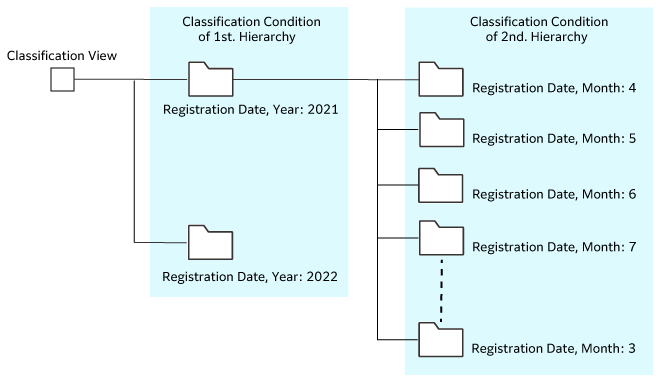
April is set as the start month of the year in this example.
Operation
- Select the Date type of attributes from the [Attributes] drop-down list in the page displayed by clicking the [Add] button of the [Classification Conditions] page.
- Select classification "by Year" from the [Classification Type] drop-down list.
The [Classification Conditions Date Type Classification by "Year"] page appears.
- Specify the range of classification. Specify the start year and close year in [Period].
- Select the [Yes] radio button of [Month].
- When classifying the objects with the condition values which may not be classified to any classification folders, select the [Create] radio button of [Other Folder (required)].
- When classifying the objects with the value which is not set to the specified attribute, select the [Create] radio button of [No Value Folder (required)].
- Click the [Apply] button.
The settings are saved, and the [Classification Conditions] page appears.