In DocumentSpace, the objects registered with the Document Management Service can be classified based on the attributes, and the classification results can be listed.
The classification condition to classify the objects should be set on the classification view. The classification results of the objects are listed in the classification folder under the classification view. The classification folder is created based on the classification condition set to the classification view.
The classification view can be created in the classification drawer under the classification cabinet. The classification cabinets and the classification drawers can be created by the service administrator of the document management service only.
The classification has the following classification types.
Shown below are the basic steps of creating a classification view.
The following for each setting method.
➯ "Creating a Classification View"
➯ "Setting Basic Conditions "
➯ "Setting Classification Conditions"
➯ "Setting Registration Attributes"
The following for each setting method.
➯ "Changing the Settings of a Classification View"
➯ "Updating the Number of Classified Objects in the Classification View"
➯ "Deleting a Classification View"
➯ "Registering Folders or Documents via Classification View or Classification Folders"
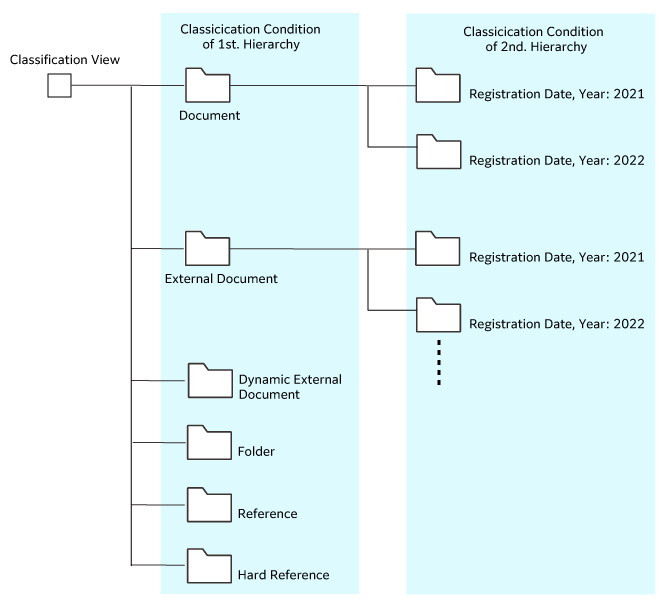
Shown below is an example of classification view settings.
This is the case of classifying the folders managed by a certain group by object type and registered period.
The classification conditions of the classification view are set as below.
Shown below are the classification results obtained from the classification conditions above.
Fig.: Classification Results (Example)
The first classification folders are created based on the classification conditions of the first hierarchy. The second classification folders are created based on the classification conditions of the second hierarchy directly under the classification folders in the first hierarchy.
The objects are classified directly under the classification folders in the second hierarchy, and the classification results are listed.
Up to six hierarchies can be specified for the classification conditions of attributes.